Team, roles & permissions
Share Texts on Your Phone Lines With Your Team. Decide Who Sees What.
Grant or revoke access to twelve unique features, from billing and Relays to Analytics and developer tools, with four access levels.

Default roles
Three default roles cover most teams on day one.
Admin
Full access
Owner on everything, including billing and the developer tools. The only role that can delete messages from a thread.
Manager
Lead access
Editor on most things, including Team Management and Phone Numbers, so they can run your team without touching your bill.
Operator
Frontline access
Editor on contacts, labels and templates. Everything they need to work a conversation, nothing they don’t.
Resource-level access
Grant access to specific features, down to the individual resource.
Feature-level access is the first layer. Under it, you can narrow any feature to the specific lines, labels, and inboxes a person should touch.
Per phone line
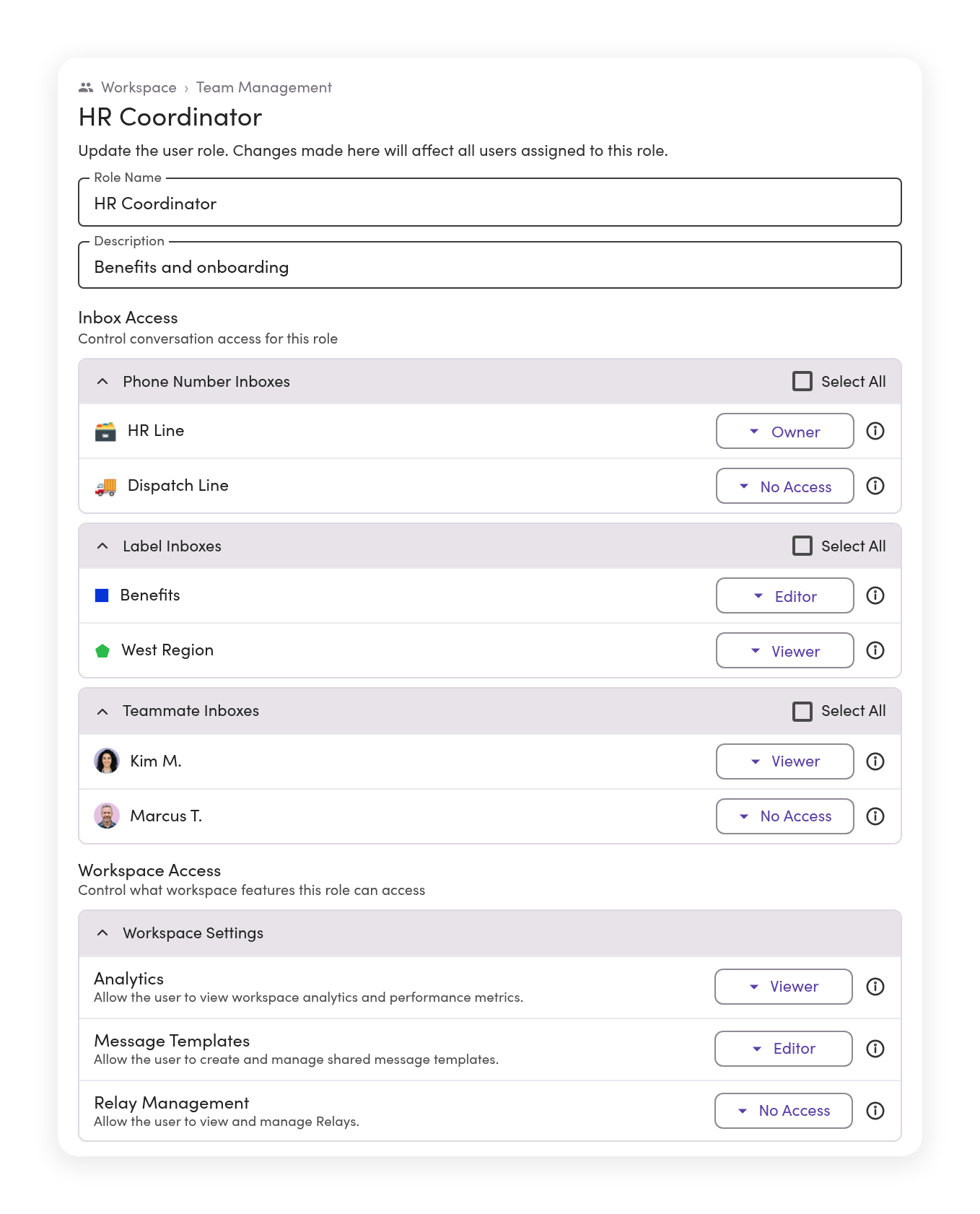
Owner, Editor, Viewer, or nothing at all, line by line. HR and dispatch can stay separate.
Per label
Scope someone to Benefits or to West Region without access to the whole line.
Per teammate inbox
Choose who can look at other teammates’ conversations.
How user access controls work
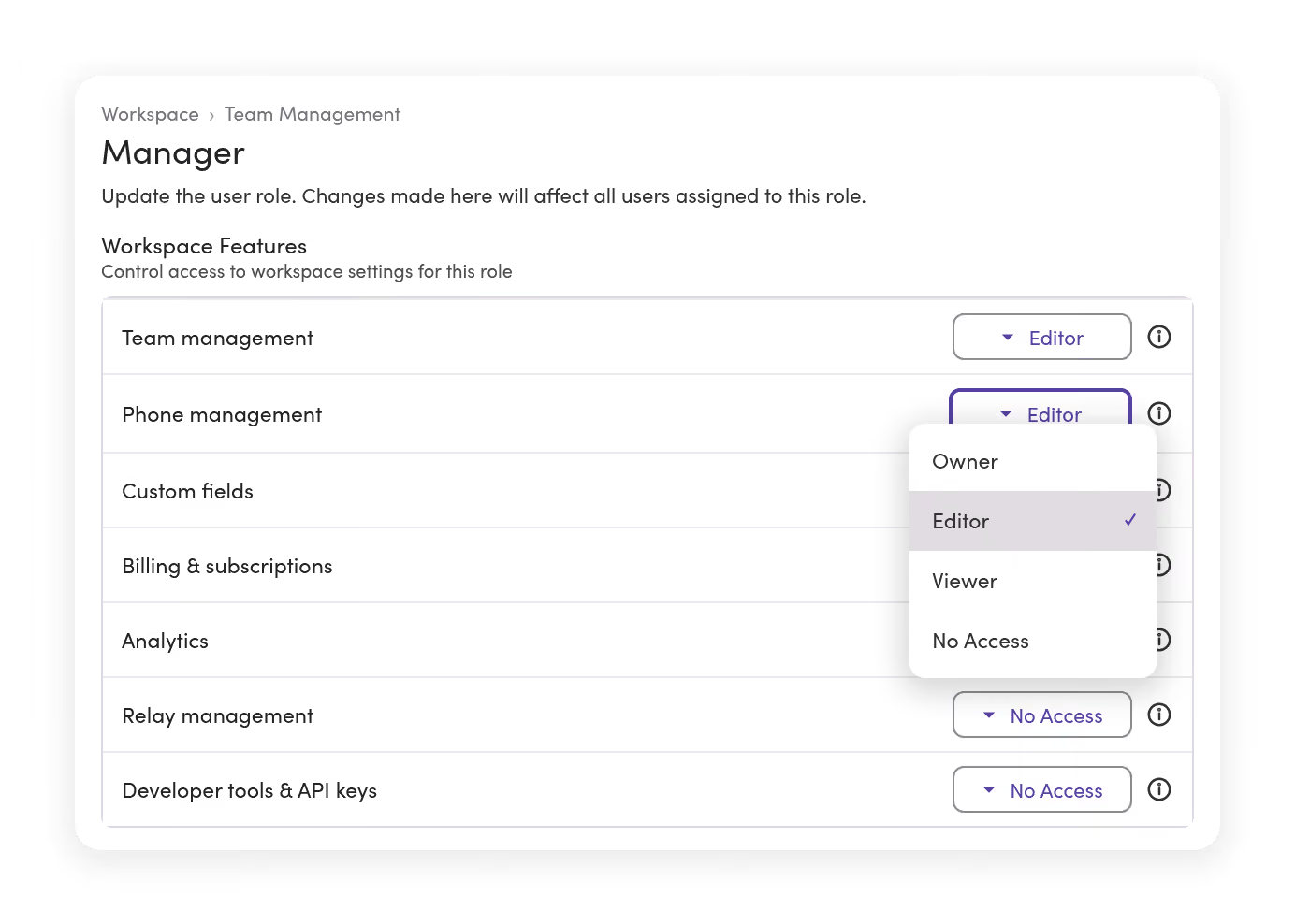
Four access levels, applied feature by feature.
A role is just a set of these, applied across all twelve features. Admins own everything; Managers edit most settings; Operators mostly view.
Owner
View, edit and delete.
Editor
View and edit. Can’t delete.
Viewer
Read only, no create or edit.
No access
Blocked, with no access.
Custom roles
Or build roles based on your org chart.
Copy an existing role, change what you need, save. Here are four we see frequently:
Support agent
Editor on contacts, labels and templates. Scoped to the support lines and support labels only.
Dispatcher
Editor on the dispatch line and the region labels. Viewer on phone numbers and Relays.
HR coordinator
Editor on broadcasts and on the HR labels, Benefits and New Hire. Viewer everywhere else.
Read-only auditor
Viewer on everything, no access to billing. For the person who needs the record, not the keyboard.
“Everything used to run through personal phones. Now, our HR team sees every conversation from candidates to field employees in one shared inbox. It’s faster, more compliant, and nothing gets missed.”
Martine M. · HR Coordinator, Manufacturing Industry
Teams that use this
See how teams like yours use roles and permissions.



Roles and permissions questions.
No, and it’s worth knowing before you plan around it. Anyone with Editor or above on a phone line can assign a conversation to themselves, and Operators get Editor by default. There’s no permission that allows replying but blocks assigning. Scope what someone can see with line and label permissions instead.
Both unlimited. Billing is driven by user seats, so adding a role costs nothing and adding a teammate adds a seat.
Yes. Set Owner, Editor, Viewer or no access line by line, and the same way for labels and teammate inboxes. Someone with no access to a line doesn’t see it at all.
Usually not. If the goal is “this person only sees that line”, permissions do it, and a second workspace bills the same person twice. Separate workspaces make sense when you need separate billing or separate branding.
Only someone with Owner on that phone line, which by default means Admins. Editors and Viewers can’t, which is what you want if you’re keeping an audit trail.
It applies immediately. They don’t need to log out and back in, and anything they no longer have access to disappears on their next page load.
Yes. Build a custom role that’s Viewer on everything and no access to billing. They can read the record without being able to change it.
Custom roles are on Pro and Enterprise. Admin, Manager and Operator are on every plan, and you can copy any of them as a starting point once you’re on Pro.
Bring your team and give them access to what they need.
Tell us how you organize your team and we’ll show you the roles that fit in a 20 minute demo.