
Learn How to Configure Zapier SMS Integrations to Trigger, Send, and Receive SMS Text Messages
Teams can build a Zap and send a message. But what happens when a technician replies with a schedule change, a candidate texts back with a question, or a customer needs to reschedule?
No one on the team sees the replies, and that’s where the workflow stumbles.
The issue isn’t Zapier itself. There’s a disconnect between triggering a message and managing the conversation that follows.
SMS by Zapier can send one-way notifications. But it can't receive replies, send from your business number, or route responses to anyone on your team.
For dispatch, staffing, or appointment-based operations, that’s a problem.
In this guide, you'll learn:
- What SMS by Zapier is and where it stops short for operational teams
- What a Zapier SMS integration gives you instead
- How to set up MessageDesk as your Zapier SMS action
- Which workflows dispatch, recruiting, and scheduling teams use most
By the end, you'll know which setup works best for your team and how to get started.
So let’s jump in.

What Is SMS by Zapier?
SMS by Zapier is Zapier's native action for sending one-way text alerts inside a Zap. Pick a trigger app, connect SMS by Zapier as the action, and it sends a message when the event fires, without needing a separate SMS account. For simple personal notifications, it works fine. But it’s not a fully scoped solution.
Key limitations for operational business teams
The moment you need anything beyond a one-way alert, SMS by Zapier reaches its limits quickly:
- No inbound SMS. It can't receive replies. A dispatcher who sends a job update via SMS by Zapier has no way to see a technician's response in any shared system.
- No business phone number. Messages go out from a Zapier-owned number. Recipients see an unfamiliar number with no connection to your brand.
- No two-way messaging. Workflows that require back-and-forth communication aren't possible.
- No shared team inbox. Replies don’t have a central place to go where your team can triage, assign, or respond.
- Low volume. SMS by Zapier caps outbound messages at 15 per hour.
- 160-character message limit. Messages truncate at 160 characters, with no MMS support.
For a dispatcher confirming a job update, a recruiter waiting on a candidate response, or a coordinator tracking appointment confirmations, these limits completely break the workflow.
Zapier also won’t manage A2P 10DLC carrier registration or your opt-in/out lists for you. You’re pretty much on your own.
What Is a Zapier SMS Integration?
A Zapier SMS integration, like MessageDesk’s Zapier integration, connects Zapier to a third-party SMS platform, replacing SMS by Zapier with a business texting tool.
That means two-way messaging, a registered business phone number, a shared team inbox, and built-in compliance tools that native SMS can’t deliver.
The connection lives in Zapier. When an event fires in an external app, Zapier triggers your SMS platform, which delivers the message from your business number. Replies then route directly into your team inbox.
MessageDesk's Zapier integration and shared inbox
MessageDesk connects to 9,000+ apps through Zapier.
When set up as the action in a Zap, outbound messages show your MessageDesk number, not an anonymous Zapier number. Replies land in your shared MessageDesk Inbox, where your team can see, assign, and respond to every conversation.
The MessageDesk Zapier integration is currently in beta, but early access is available to Pro plan customers by request.
Important distinction: Zapier and MessageDesk Relays are separate systems. Zapier handles outbound triggers from external apps. Relays are MessageDesk's desktop-based internal automation layer. They handle what happens to inbound replies inside your inbox after a Zap fires.
SMS by Zapier vs. Zapier Integrations
You can send SMS messages through Zapier in two ways:
- SMS by Zapier
- Zapier SMS integrations via MessageDesk
Here’s how the two options compare:
When to Use Each Approach
The right solution depends on what your team needs to do after the message sends.
When SMS by Zapier is the right fit
SMS by Zapier can work for simple, one-way internal notifications at low volume.
If your team doesn't need to see replies, and you're not texting customers from a business number, it gets the job done without adding another tool.
A good example is an ops manager who wants a quick SMS ping when a form submission comes in. No one needs to triage or reply.
For teams in regulated industries, like healthcare or finance, SMS by Zapier doesn't meet compliance requirements. It doesn't support A2P 10DLC registration, TCPA opt-out handling, or message-level audit trails.
When to use a Zapier SMS integration instead
If your team needs to manage conversations or leverage automated text message services at any kind of scale, you need an integration solution:
- Your team needs to see and respond to replies in a shared space
- You need to text customers, candidates, or clients from a business number
- You're sending more than 15 messages per hour
Dispatch teams, recruiting coordinators, and appointment-based service businesses all fall into this category. The Zapier trigger fires your message. Everything after that requires an inbox.
How to Set Up a Zapier SMS Integration with MessageDesk
A little housekeeping before I get into the step-by-step guide:
- The MessageDesk Zapier integration is currently in beta.
- MessageDesk supports U.S. and Canadian phone numbers only.
This is a no-code setup, so you won’t need any custom code or API configurations.
Step 1: Request access and connect MessageDesk in Zapier
Request beta access here. Once approved, you'll get an invitation email from Zapier. (You need to be an admin on your Zapier account to accept.)
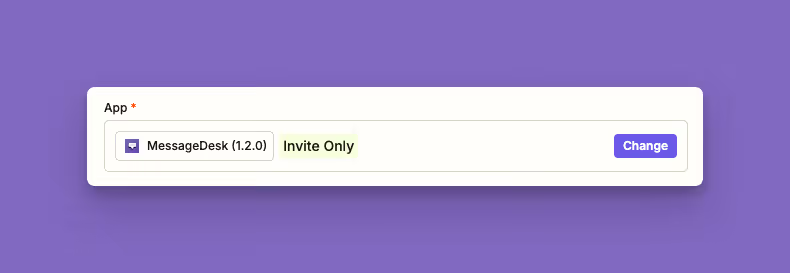
After accepting, log in to Zapier. Search for "MessageDesk (Invite Only)" and select version 1.2.0.
Step 2: Choose your trigger app and event
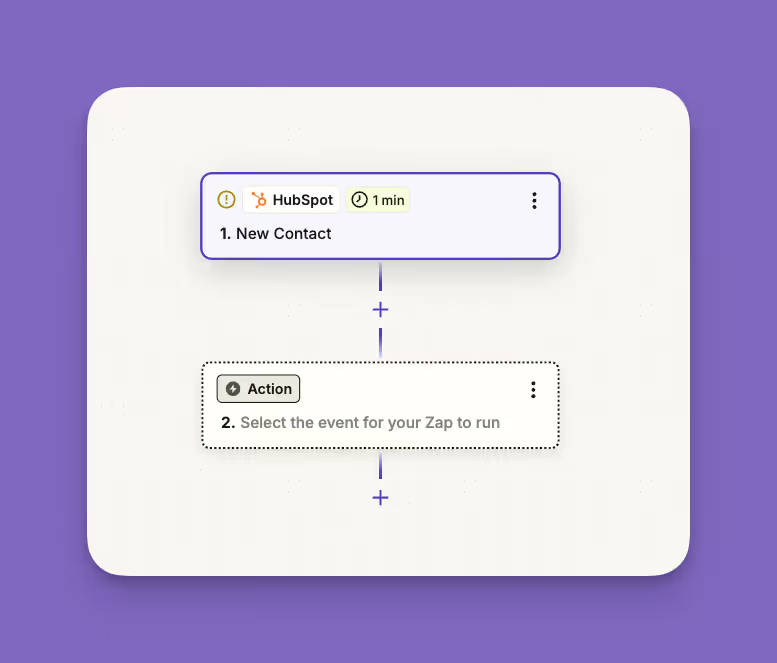
For this walkthrough, we'll use HubSpot as the trigger app. The same steps apply to any app in Zapier's library, such as Jobber, Calendly, Acuity, Greenhouse, or any other tool your team uses.
Create a new Zap, search for HubSpot, and choose "New Contact" as the trigger event.
Connect your HubSpot account and test the trigger to confirm it pulls contact data correctly.
Step 3: Add MessageDesk as your action and configure your message
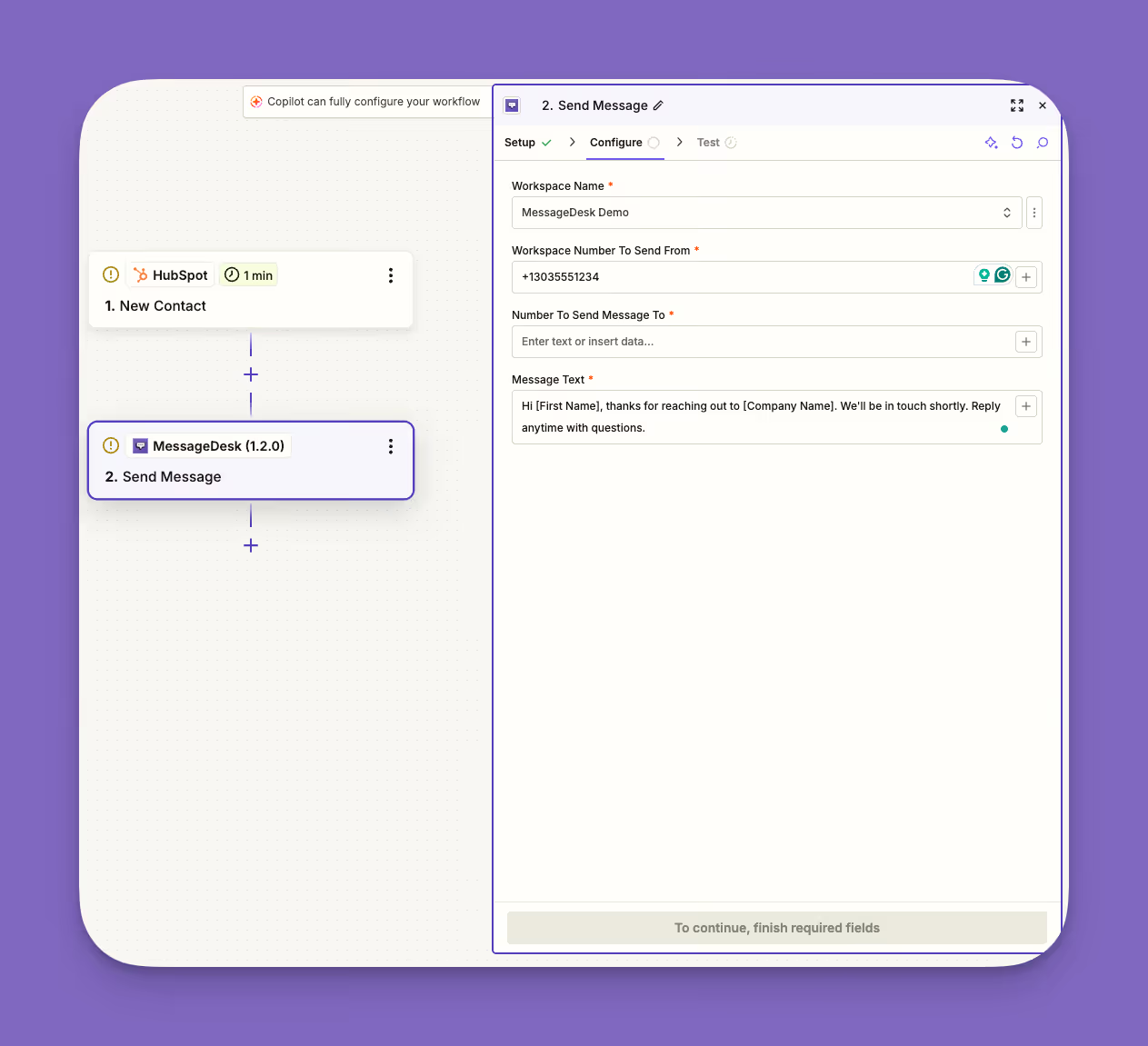
Search for MessageDesk in the action step and select "Send Message" as the action event. Connect your MessageDesk account.
The "Send Message" action requires four fields:
- Workspace Name: Your MessageDesk workspace
- “From” number: The MessageDesk phone number to send from (E.164 format, e.g., +13035551234)
- “To” number: The recipient's phone number, mapped from your HubSpot contact data (E.164 format)
- Message text: Your message body, with dynamic fields pulled from the trigger
A copy-ready example:
"Hi [First Name], thanks for reaching out to [Company Name]. We'll be in touch shortly. Reply anytime with questions."
Note the field tokens that are within the brackets. These are your dynamic fields that will pull specific, personalized values from HubSpot into your SMS message body.
Messages you send through Zapier count toward your MessageDesk usage and follow the same carrier and compliance rules as messages sent from the inbox directly.
MessageDesk supported Triggers
MessageDesk supported Actions
Step 4: Test and activate your Zap
Use Zapier's built-in test step before activating. Make sure the message arrives in your MessageDesk Inbox before turning the Zap on.
Pro tip: Once your Zap is live, you can set up a MessageDesk Relay to automatically assign or label inbound replies from that conversation. The Relay handles reply routing inside MessageDesk. Use it as a follow-on step for managing responses, not as part of the Zapier connection itself.
Operational Zapier SMS Workflows for Teams
Here’s how operations teams can use the MessageDesk Zapier integration.
Dispatch update triggers from field service tools
Trigger: A job status changes in Jobber or another field service platform.
Zap fires: MessageDesk sends an SMS update to the assigned technician.
What happens next: The technician's reply lands in the shared dispatcher inbox. The dispatcher sees the full conversation and responds from the business number.
A Relay can auto-assign the inbound reply to the dispatcher on duty, so it doesn't sit unread for any longer than necessary.
Candidate outreach sequences from ATS platforms
Trigger: A candidate submits an application, which creates a new applicant record in your ATS.
Zap fires: MessageDesk sends an initial screening SMS to the candidate.
What happens next: Replies route into the recruiting team's shared inbox, with every message logged per candidate.
Teams can configure a Relay to auto-label inbound replies ("New Applicant") and route them to the right recruiter.
Appointment and team notifications for service teams
Trigger: Someone books an appointment in Calendly or Acuity.
Zap fires: MessageDesk sends a confirmation SMS.
What happens next: The recipient can confirm, reschedule, or ask a question. That reply lands in the shared inbox for a coordinator to handle. A scheduling change, for instance, triggers an SMS to the relevant team member.
Use Relays to auto-route replies by phone line or label, so coordinators don’t have to sort responses manually. All replies come to the shared inbox, never a personal cell phone.
Invoice and estimate follow-ups from QuickBooks
Trigger: You issue a new invoice or estimate in QuickBooks Online.
Zap fires: MessageDesk sends a confirmation text, then a reminder text if the customer hasn't paid after a set number of days.
What happens next: The message opens a real conversation in your shared inbox, not a one-off blast. If you include the QuickBooks payment link, the customer can tap it to pay from their phone, so a missed callback doesn't turn into a slow payment. When they reply with a question about the bill or the work, it stays in that same thread for whoever is free to pick it up.
You can also build the Zap so reminders stop once the invoice is paid or the estimate is approved, which keeps you from nudging someone who already acted.
A Relay can auto-assign each inbound reply to the teammate on billing duty and auto-label it ("Billing"), so a customer's answer about an invoice never sits unread in a personal text thread.
What Happens After the Message Sends
So, what happens inside MessageDesk after a Zap fires?
The outbound message goes out from your MessageDesk business number. When the recipient replies, that reply routes into your shared SMS inbox.
Your team can see the full conversation thread, assign it to a specific person, add labels for triage, leave internal comments, and respond from the same business number.
MessageDesk also logs every Zapier-triggered message and inbound reply, so your team has a complete conversation record without switching tools. When an inbound reply arrives, a Relay can automatically assign it to the right team member or label it for follow-up.
Connect Your Tools and Text Smarter with MessageDesk
SMS by Zapier handles simple one-way alerts. But for operational teams managing dispatch updates, candidate outreach, appointment confirmations, or other use cases that need two-way communication, that's not enough.
You need the full conversation lifecycle: outbound triggers, inbound replies, shared inboxes, and team assignments.
The MessageDesk Zapier integration connects 9,000+ apps with zero custom development and routes every triggered message to a shared team inbox.
Layer on Relays to automatically assign and label inbound replies, and your team has a completely managed workflow, with no copy-pasting messages between tools.
Stop piecing together conversations across tools. Get the solution built for business texting and the integration to connect it to everything else.
Talk to a MessageDesk expert today.
Frequently Asked Zapier SMS Integration Questions
What is the difference between SMS by Zapier and a third-party SMS integration?
SMS by Zapier is Zapier's native action for sending one-way text alerts inside a Zap, with no support for inbound replies, business phone numbers, or shared team inboxes. A third-party Zapier SMS integration connects Zapier to a dedicated SMS platform, unlocking two-way messaging, your own business number, and a shared inbox where your team can assign and respond to conversations. The MessageDesk Zapier integration requires no custom code and works across 9,000+ apps.
Can Zapier receive SMS messages?
SMS by Zapier can't receive inbound text messages, which makes it a poor fit for any workflow where customers or team members need to reply. To receive SMS inside a Zap, you need a third-party SMS platform connected via Zapier, where inbound replies trigger downstream actions. With MessageDesk, inbound replies land directly in a shared team inbox, where they can be assigned and managed collaboratively. Teams can then use Relays to auto-route or label those replies inside the inbox.
Do I need a separate SMS provider to use Zapier for business texting?
For basic one-way alerts, SMS by Zapier works without a separate provider, but it comes with hard limits: no business phone number, no two-way messaging, and no team inbox. Operational teams managing dispatch updates, candidate outreach, or appointment confirmations need a dedicated SMS platform connected to Zapier. MessageDesk's Zapier integration serves as that connection layer, letting non-technical teams build SMS workflows without custom development. Once messages are flowing, teams can use MessageDesk Relays to automatically route and label inbound replies inside the shared inbox.
What happens when someone replies to an automated text sent through Zapier?
If you sent the message using SMS by Zapier, replies go nowhere because the native Zapier SMS action doesn't support inbound messaging. If you sent the message through a third-party SMS platform connected via Zapier, replies route back to that platform. With MessageDesk, every reply lands in a shared team inbox where your team can see the full conversation, assign ownership, and respond from your business number. Teams can also configure a Relay to automatically assign or label those inbound replies for faster triage.
Can I use my own business phone number with Zapier SMS workflows?
SMS by Zapier sends from a Zapier-owned number, so recipients see an unfamiliar number with no connection to your brand. Third-party Zapier SMS integrations let you send from your own registered business number, which builds trust and keeps your communication consistent. The MessageDesk Zapier integration connects Zapier to your MessageDesk inbox, so every triggered message goes out from your business number, and replies come back to your team. From there, Relays can handle automatic routing and assignment of those inbound replies.